chordlist
Press / to search
Nothing in the documentation matches that search. Try fewer words, or ask in the FAQ.
Documentation
chordlist is a songbook built on ordinary Markdown files. Start with the quick start to get your first song on screen, then come back to the rest of this guide whenever you want to write chords, organize files, or sync your library.
Songs, lyrics & chords
Quick start
Three steps take you from a fresh install to a song on your music stand.
01
Choose a songs folder
The first time you open chordlist, pick where your library lives.
Use chordlist Folderkeeps your songs on this device.Select Songs Folderlets you choose any folder instead, such as one in iCloud Drive to sync between your iPhone and iPad.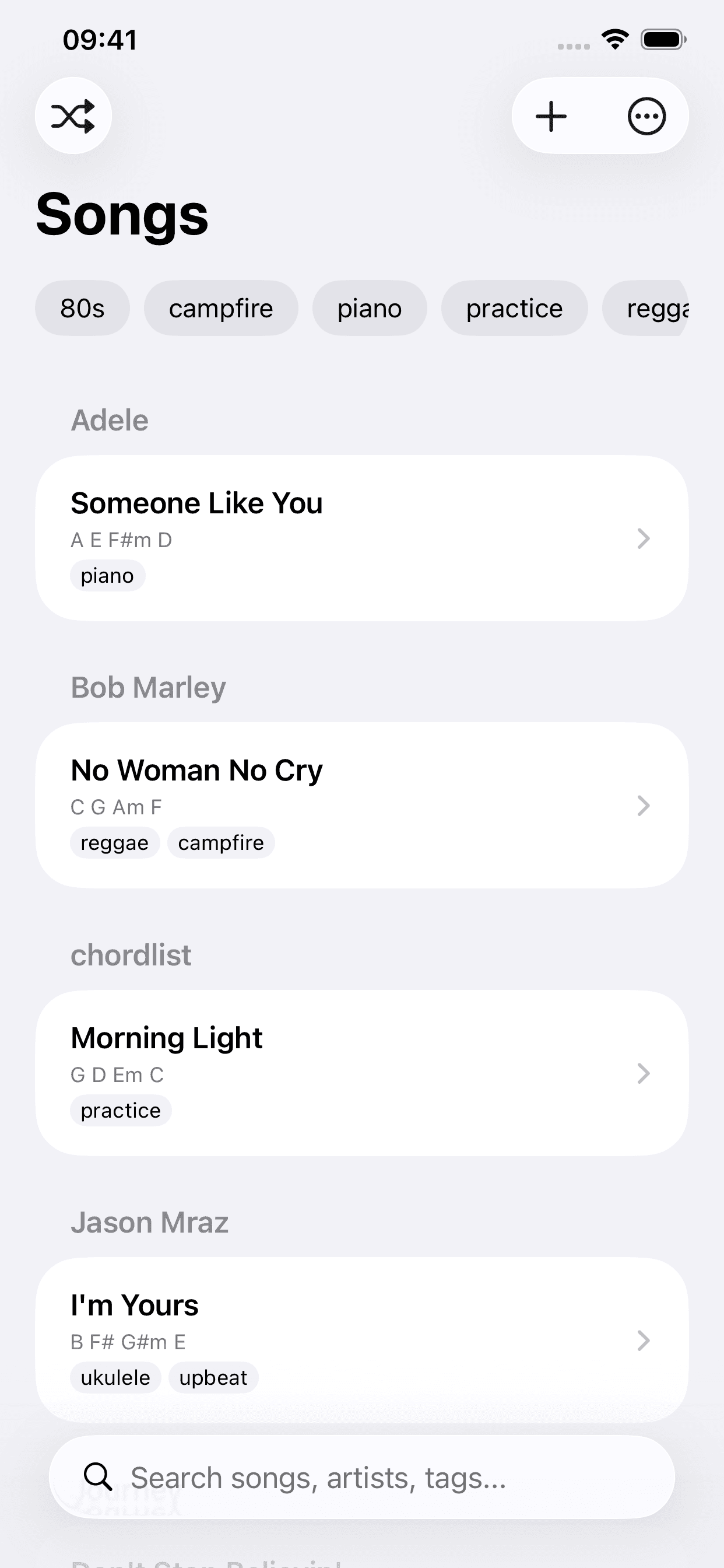
02
Add a song
Tap
+on the song list, enter a title, artist, and lyrics, and add chords if you have them. TapSaveand the song is written to a Markdown file in its artist's folder.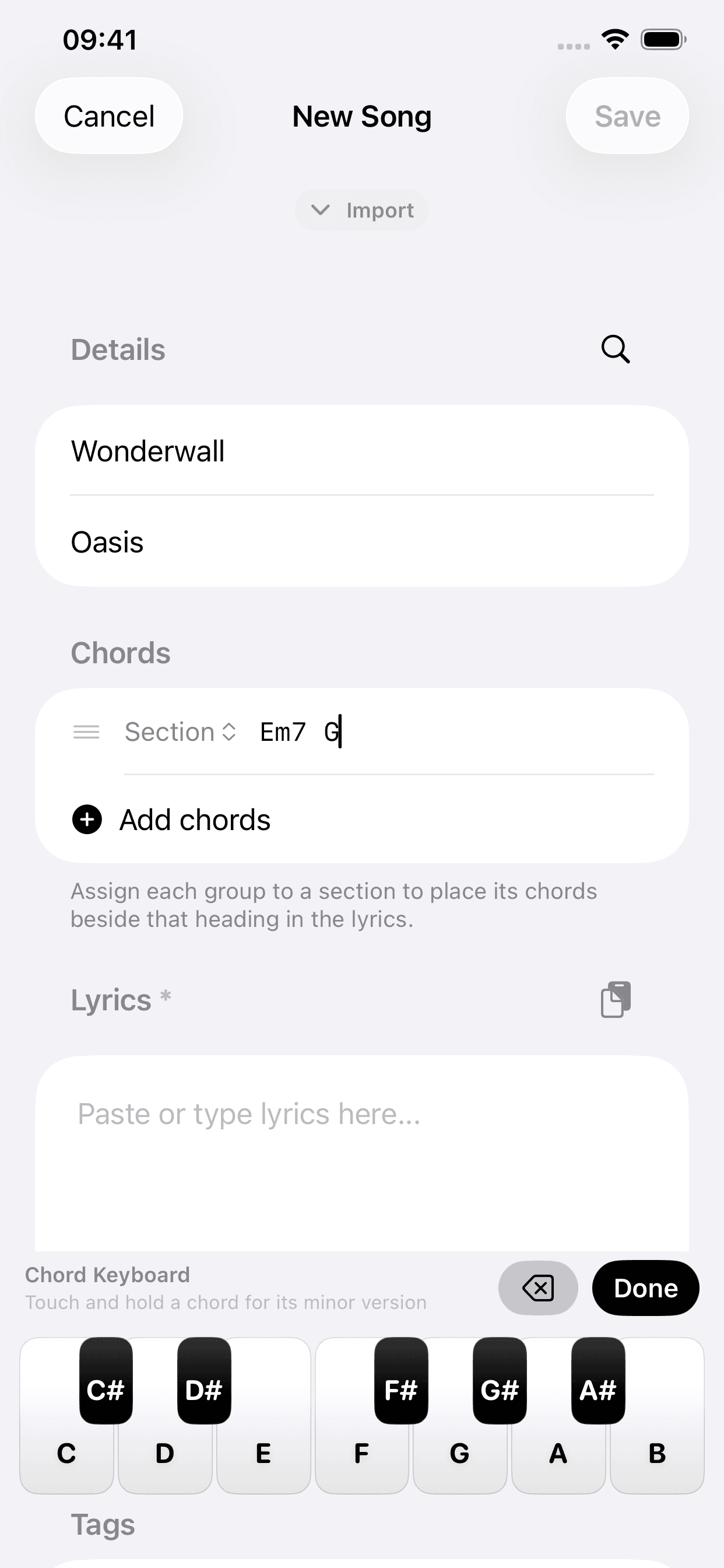
03
Open it and play
Tap the song to open it. Press play to start hands-free scrolling, and tap the chord progression to change key.


- You can switch folders at any time — choose
Select Songs Folderfrom the⋯menu on the song list, or open⋯ → Settings → Songs Folder. chordlist remembers its permission to the folder and checks it for changes whenever you return to the app. - Changed something in another app? Pull down on the song list to refresh straight away.
Find songs
The song list shows every song in your folder, grouped by artist. None of these tools move or rename your files — they only change what you see.


- Search
- Type in the search field at the bottom of the list to match titles, artists, and tags at the same time.
- Filter by tag
- Tap a tag above the list to show only songs with that tag. Select several to see songs with any of them, and tap a tag again to clear it.
- Sort
- Open the
⋯menu to sort byArtist,Title,Last Played, orPlay Count. - Shuffle
- Tap the shuffle button in the top-left corner to open a random song from the songs currently shown — handy for practice or building a set.
- Now Playing
- Connect Apple Music in Settings and chordlist matches the track that is playing to a song already in your library.
- Tidy up your tags
- Scroll to the end of the tag row and tap the pencil to hide tags you rarely use or put the important ones first.
Play a song
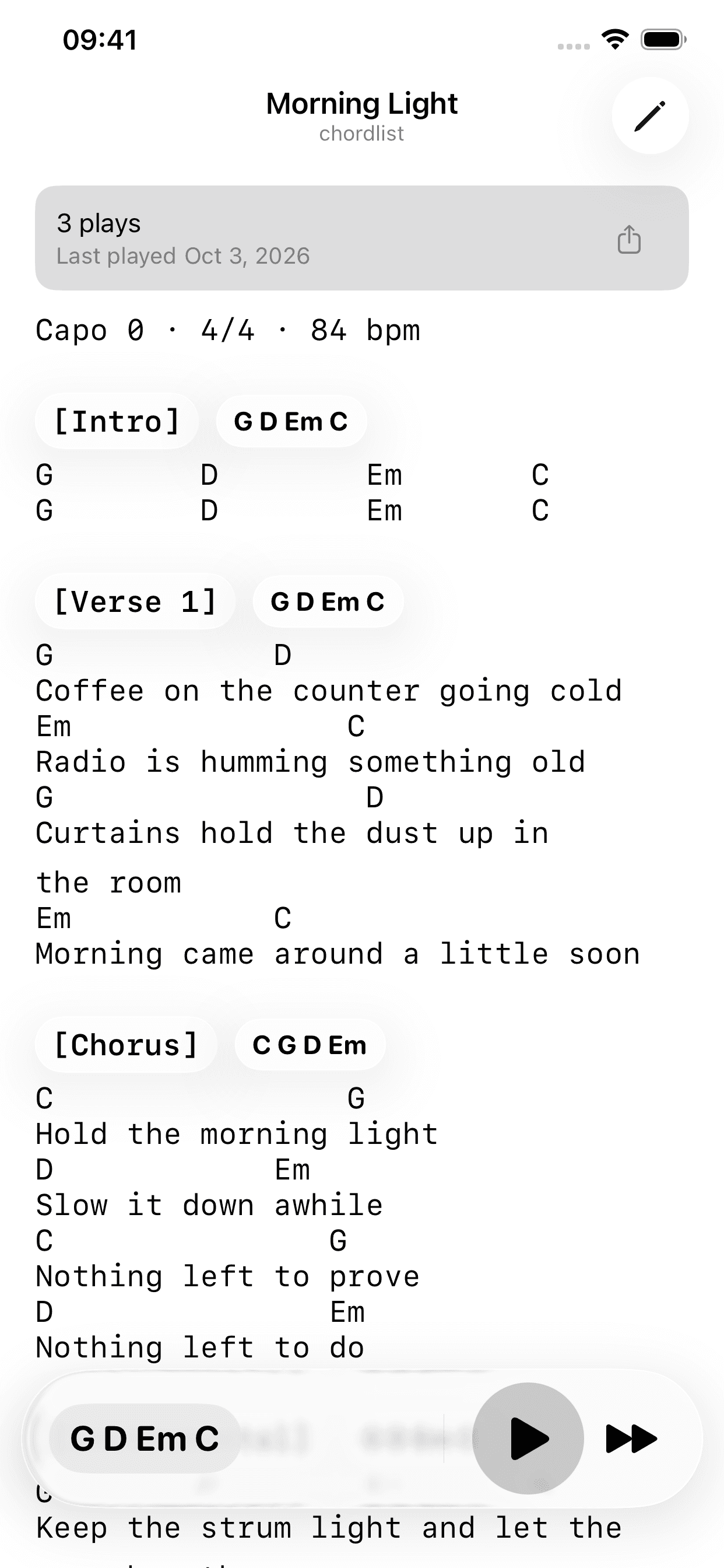
Open any song to see its lyrics and chords. Everything you need while playing sits on this one screen.

Numbers on the screenshot match the list. Tap one to jump between them.
- 1
Play history
How many times you have played the song, and when you last did. The share button next to it sends the song file to another app or person.
- 2
Chords for each section
Chords written after a section heading appear beside it, so the progression for every part is visible at a glance.
- 3
Transpose
Tap the chord progression to move every chord on the sheet up or down by semitones. This only changes what you see: it resets when you leave the song and never rewrites the file.
- 4
Autoscroll
Start and pause hands-free scrolling. While it runs, a speed button appears; for a different pace across all songs, change
AutoscrollunderSettings → Behavior(0.5× to 1.25×). - 5
Next song
Jump to another random song without going back to the library. Once you have moved on, a back button retraces the songs from this session.
- 6
Mark as played
At the end of the song, tap
Mark as playedto add one to its play count and record today’s date. Both are saved in the song file, so they travel with it. - 7
Matching songs
Songs with the same chord progression are listed below — useful for finding medleys, mashups, and smooth transitions between songs.
Add and import songs
Tap + on the song list to open the editor. Only the title, artist, and lyrics are required — everything else can be added later with the edit button on the song.
Numbers on the screenshot match the list. Tap one to jump between them.
- 1
Import
Paste a link to a lyrics or tab page and chordlist fills in the song from it. Always review what comes in before saving.
- 2
Title and artist
These become the file name and the artist folder. The search button looks the song up on the web so you can copy its lyrics.
- 3
Chords
Type a progression, then use the
Sectionpicker to assign it to a part such as Verse or Chorus — it is placed beside that heading in the lyrics. TapAdd chordsfor another part. - 4
Chord keyboard
Tap a key to type that chord. Touch and hold a key for its minor version.
- 5
Lyrics
Paste or type the lyrics. Headings like
[Verse]and[Chorus]divide the song into parts; see Write chords below.
Other ways to add songs
- Share from Safari
- On a lyrics or tab page, tap the share button and choose chordlist. Check the title, artist, and lyrics, then tap
Import to chordlist. If anything still needs filling in, the app finishes the import when you next open it. - From Apple Music
- With Apple Music connected, start a new song from the track that is currently playing.
- Add a file directly
- Copy a Markdown file into an artist folder with Files, Finder, or another app — see Files and folders below.
Make sure you have the right to use any lyrics or chords you import.
Write chords
Lyrics are plain text, so chords are too. chordlist understands three ways of writing them, and you can mix them in the same song.
01Above the lyrics
Put chords on their own line, directly above the words. Use spaces to line each chord up with the syllable where it changes. A line only counts as chords when every word on it is a chord, so lyrics are never transposed by accident.
C                G
Hold the morning light
D            Em
Slow it down awhile02After a section heading
Write a progression after a heading to show the chords for that whole part. Separate several progressions with a comma.
[Verse] G D Em C

[Chorus] C G D Em, C G D03Inside a line
Put a chord in brackets exactly where it falls in the lyrics. Brackets that hold anything other than chords stay as lyrics.
Hold the (C) morning light (G)
Slow it down awhile (D) (oh)
Section headings
A heading is a section name in square brackets on its own line. Capitals don’t matter, and you can number them — [Verse 2], [Part II] — or write [Final Chorus]. These names are recognized:
- [Intro]
- [Verse]
- [Pre-Chorus]
- [Pre-Hook]
- [Chorus]
- [Hook]
- [Refrain]
- [Part]
- [Bridge]
- [Solo]
- [Instrumental]
- [Interlude]
- [Breakdown]
- [Outro]
Use a different name? Add your own under ⋯ → Settings → Behavior → Section Markers.
File management
Files and folders
Your library is just a folder. Inside it, each artist has a folder, and each song is a Markdown file in its artist’s folder. The names on disk are what you see in the app.
- Songs/Your songs folder
- The Beatles/Artist
- Let It BeSong title
- .mdMarkdown file
Songs/
├── The Beatles/
│   └── Let It Be.md
└── Tracy Chapman/
└── Fast Car.md---
chords: G D Em C
tags:
- practice
- piano
playCount: 3
lastPlay: 2026-10-03T19:30:00Z
---Frontmatter
The block between the two --- lines holds details about the song. It is optional — a file with only lyrics works too.
[Verse] G D Em C
G                           D
Coffee on the counter going cold
Body
Everything after the frontmatter: section headings, chords, and lyrics, written however you like.
Frontmatter fields
| Field | What it does | Example |
|---|---|---|
| chords | The song’s main chord progression, shown in the song list. Separate several progressions with a comma. | G D Em C |
| tags | Labels you can filter by, written as a list. | - practice |
| playCount | How many times you have marked the song as played. Updated by the app. | 3 |
| lastPlay | When you last marked it as played. Updated by the app. | 2026-10-03T19:30:00Z |
| title, artist | Written by the app when it creates a song, so a name with a character a file name can’t hold, such as / or :, keeps its original spelling. Otherwise the file and folder names win. | Morning Light |
| chordlistSongId | An identifier the app adds to new songs. Leave it as it is. | — |
- Only
.mdfiles are read, and only one level deep:Songs/Artist/Song.md. Files in deeper subfolders are ignored. - A file placed directly in the songs folder, outside an artist folder, appears only if its frontmatter has an
artistfield. - Renaming a file renames the song. Moving it to another artist folder changes its artist.
- Files and folders whose names start with a dot are hidden, and skipped.
- Any other frontmatter is kept when chordlist saves a song, so details added by another tool live safely alongside the app’s fields.
Manage files with other apps
Because the library is made of folders and text files, chordlist is not the only way to work with it. Close the song editor before changing the same file elsewhere, then pull down on the song list when you return.
- Files and Finder
- Rename, move, duplicate, share, or back up songs with Apple’s Files app or Finder. Remember that renaming a file or moving it to another folder changes its title or artist.
- Markdown editors
- Open a song in any editor that saves plain Markdown. Keep the
Artist/Song.mdstructure, and save as UTF-8 for the most predictable results. - Backups and version control
- Copy the whole songs folder to another drive or backup service. On a computer, you can also use Git to keep a history of every change.
Use chordlist with Obsidian
An Obsidian vault is also a folder of Markdown files, so the same folder can be both an Obsidian vault and a chordlist library.
- On iPhone or iPad, create an Obsidian vault with
Store in iCloudturned on. Obsidian keeps iCloud vaults iniCloud Drive/Obsidian/[Vault Name]. - In chordlist, open
⋯ → Settings → Songs Folderand select that vault folder. - Inside the vault, create one folder per artist and keep each song as
Artist/Song Title.md. Obsidian’s hidden.obsidiansettings folder is ignored by chordlist. - Edit lyrics and frontmatter in either app. Back in chordlist, pull down on the song list if an edit hasn’t appeared yet.
iCloud Drive/
└── Obsidian/
    └── Songbook/          ← select this folder in chordlist
        ├── .obsidian/     ← ignored
        ├── Adele/
        │   └── Someone Like You.md
        └── Bob Marley/
└── No Woman No Cry.mdKeep an iCloud folder available offline
A folder in iCloud Drive can appear in Files while some of its songs are stored only in the cloud. Before a rehearsal, trip, or gig without a reliable connection, tell your device to keep the whole songs folder downloaded.
- Open the Files app on the iPhone or iPad you will play from.
- Tap
Browse, then openiCloud Drive. - Find your songs folder — or the Obsidian vault folder, if you use Obsidian — and touch and hold it.
- Choose
Keep Downloaded. Files downloads everything in the folder and keeps it on that device. - Wait until the cloud download icons are gone, then open chordlist once to check every song is there.
- Repeat this on every iPhone or iPad that needs offline access; the setting applies to one device only.
- If
Keep Downloadedisn’t offered, the folder may already be stored on the device. - Changes made offline sync back to iCloud once the device reconnects. Avoid editing the same song on two offline devices at once, or iCloud may keep both versions as a conflict.
- Keep Downloaded makes songs available, but it is not a backup. Keep a separate copy of a library you care about.
Other
chordlist unlimited
chordlist is free for your first 10 songs. chordlist unlimited is a one-time in-app purchase that removes that limit for good and supports the app’s development.
What it includes
- Unlimited songs
- Add as many songs as you like, forever.
- No ads
- The small advert for another independent app, shown at the end of the song list and of each song, goes away. Those adverts come from Kickstart Exchange, where independent apps promote one another.
- About Kickstart Exchange
- Pay once
- It is a single purchase, not a subscription. Nothing renews and nothing is charged again.
- All your devices
- The unlock belongs to your Apple Account, so it works on every iPhone and iPad signed in with it. There is no chordlist account to create.
- Family Sharing
- If you use Family Sharing, the members of your family group can use the unlock too.
How the free version works
- Once your library has 5 songs, adding another first shows the unlock screen. Tap
Continue Freeto carry on. - At 10 songs, adding a song in the app needs the unlock.
- Reaching the limit never locks the songs you already have: you can still open, play, edit, and share every one of them.
How to buy it
- Open
⋯ → Settingsand tapUnlock Unlimited Songsunderchordlist unlimited. The same screen also appears on its own when you add a song past the free limit. - Tap the unlock button and confirm the purchase with Face ID, Touch ID, or your Apple Account password.
- That’s it. The lock beside
chordlist unlimitedin Settings opens, and you can add songs straight away.

Numbers on the screenshot match the list. Tap one to jump between them.
- 1
What you get
Unlimited songs and no ads.
- 2
Unlock
Shows the price in your own currency. Confirming opens Apple’s payment sheet.
- 3
Continue Free
Closes the screen and keeps going. It is offered until you reach 10 songs.
- 4
Restore Purchases
Brings back an unlock you already bought — on a new device, or after reinstalling.
If something goes wrong
I paid, but it’s still locked
Open ⋯ → Settings → chordlist unlimited → Unlock Unlimited Songs and tap Restore Purchases. If that doesn’t help, check that the device is signed in to the App Store with the Apple Account that made the purchase, under Settings → [your name] → Media & Purchases. Still locked? Email support@chordlist.app with the receipt Apple sent you, and we’ll sort it out.
I got a new iPhone or reinstalled the app
You don’t need to buy it again. Sign in with the same Apple Account, open the unlock screen, and tap Restore Purchases.
“The purchase completed, but Unlimited Songs wasn’t unlocked”
Apple took the payment, but the app couldn’t confirm it yet. Tap Restore Purchases, ideally on a stable connection. If the message keeps appearing, email support@chordlist.app.
The unlock button doesn’t work, or no price is shown
The App Store couldn’t be reached. Check your internet connection and try again later. If in-app purchases are turned off in Screen Time, under Settings → Screen Time → Content & Privacy Restrictions, the purchase can’t go through until they are allowed.
I want a refund, or was charged twice
Purchases are made through the App Store, so only Apple can refund them: request one at reportaproblem.apple.com with the Apple Account that paid. If something isn’t working, email support@chordlist.app first — a fix usually arrives sooner than a refund does.
Apple processes the payment, and chordlist never sees your card or bank details. How purchases are verified is described in the privacy policy.
Troubleshooting
Most problems come down to where a file is or what it is called. Start here.
A song doesn’t appear in the library
Check that it is a .md file directly inside an artist folder — not in a deeper subfolder — and that its name doesn’t start with a dot. Then pull down on the song list to refresh. If the folder is in iCloud Drive, the song may not have downloaded to this device yet; see Keep an iCloud folder available offline.
A song has the wrong title or artist
The file name is the title and the folder is the artist. Rename the file, or move it to the right artist folder, in Files or Finder, then refresh.
An edit from another app hasn’t shown up
Pull down on the song list. If the song was open in chordlist’s editor while you changed it elsewhere, tap Cancel and open the song again.
“No Songs Found” or “No Folder Selected”
chordlist can’t find song files in the folder, or no longer has permission to open it. Choose Select Songs Folder from the ⋯ menu and pick the folder again.
My transposition didn’t stick
That’s by design: transposing only changes what you see, and resets when you leave the song. To change the key for good, edit the chords in the song itself.
Chords in my lyrics aren’t treated as chords
A chord line has to contain nothing but chords — one word of lyrics turns it back into text. For a section heading, make sure the name is one chordlist recognizes, or add it under Section Markers.
Still stuck?Read the FAQContact support